
In today’s digital age, maintaining privacy online is more crucial than ever. With evolving technology and increasing internet usage, safeguarding your personal information has never been more important.
Here’s how you can protect your privacy online in 2026, while snagging the latest deals on security tools. Check out Surfshark discount codes to kickstart your online security journey without breaking the bank.
1. Use a Reliable VPN

A VPN (Virtual Private Network) is basically “privacy mode” for your internet connection. Not because it makes you invisible online (it doesn’t), but because it stops a lot of easy, everyday snooping—especially on dodgy networks, shared Wi‑Fi, and connections where you don’t fully control what’s happening in the middle.
As Tom Church, Co‑Founder of LatestDeals.co.uk (a discount code platform), puts it: “A VPN is one of those tools you don’t notice until you need it—once it’s on, it quietly protects you on public Wi‑Fi and reduces how much of your browsing is exposed to third parties.”
Why a VPN matters in 2026
Your internet traffic normally takes the scenic route: device → router → internet provider → websites/apps. Along that path, your IP address (a rough location identifier) is exposed, and your connection can be profiled, logged, throttled, or intercepted depending on where you are and what network you’re on.
A VPN changes the path to: device → encrypted VPN tunnel → VPN server → website/app.
That does two key things:
- Hides your IP address from the sites you visit. They see the VPN server’s IP instead of yours. This makes tracking-by-IP harder and reduces the “hey, this is exactly who/where you are” effect.
- Encrypts your traffic between you and the VPN. So your Wi‑Fi owner, random people on public networks, and your ISP can’t casually read what you’re doing. They may still see that you’re using a VPN, but not the contents of the traffic.
What a VPN actually protects you from (and what it doesn’t)
Helps with:
- People sniffing traffic on public Wi‑Fi
- ISPs building detailed browsing profiles
- Basic location leakage via IP address
- Some forms of targeted ads and tracking tied to network identity
Doesn’t magically fix:
- Tracking via cookies, device fingerprinting, or logged-in accounts
- Scams, phishing links, malware downloads
- Apps that already have your identity because you’re signed in
- A shady VPN provider (you’re just moving trust from your ISP to them)
How to choose a VPN that won’t annoy you
If a VPN is slow, flaky, or constantly asking you to reconnect, you’ll stop using it. Look for these basics:
- Proven privacy stance: Clear no-logs policy, ideally with independent audits.
- Good speeds + modern protocols: WireGuard (or equivalent) typically means faster, smoother performance.
- Kill switch: If the VPN drops, your connection stops instead of quietly leaking data.
- Wide server coverage: More locations usually means less congestion and better latency.
- Device support: Make sure it works on what you actually use (phone + laptop at minimum), with enough simultaneous connections for your household.
- Transparent company: Real support, clear ownership, and a track record. If it’s “free,” you’re often the product.
Quick setup tips (so you actually stick with it)
- Turn on auto-connect for unknown Wi‑Fi networks.
- Enable the kill switch from day one.
- Use split tunneling only if you understand it (it can be handy, but it can also defeat the point if misused).
- Pair it with a privacy-focused browser and cookie controls for better results than “VPN alone.”
A reliable VPN isn’t the entire privacy game—but it’s one of the easiest, biggest upgrades you can make in 2026 for safer browsing, especially when you’re not on your own network.
2. Enable Two-Factor Authentication (2FA)

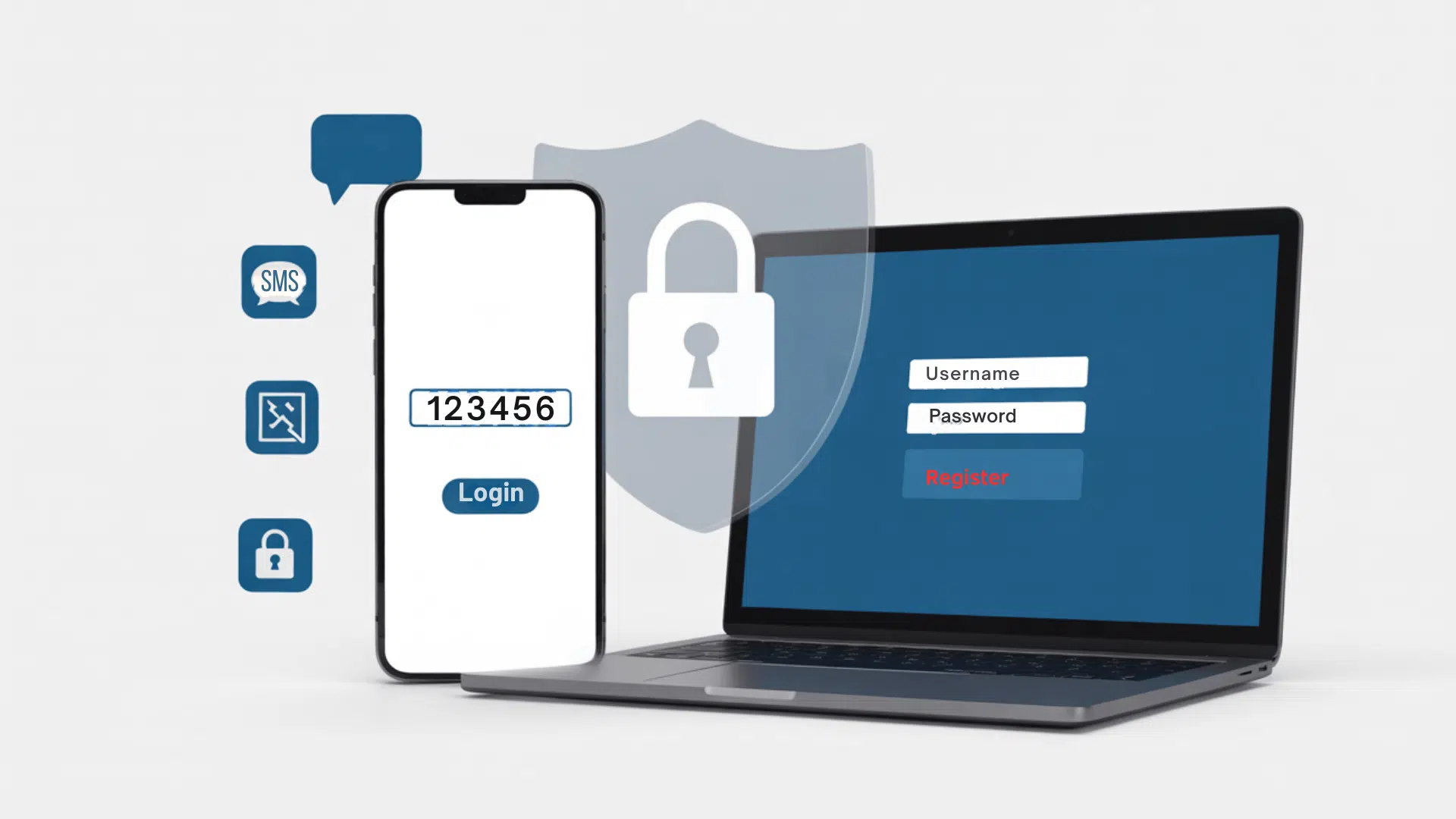
Two-factor authentication (2FA) is exactly what it sounds like: two proofs it’s really you when you log in. Instead of relying only on a password (which can be guessed, reused, leaked, or phished), 2FA adds a second step—usually a code, a prompt, or a physical key. That extra step is often the difference between “account stolen” and “nice try.”
“Two-factor authentication is one of those rare security upgrades that’s genuinely quick to switch on, but dramatically cuts the odds of being hacked.” — Tom Church, Co-Founder of LatestDeals.co.uk
What 2FA actually does (and why it matters)
Passwords fail. All the time. People reuse them, attackers buy dumps of leaked passwords, and phishing pages look disgustingly real in 2026.
2FA helps because even if someone gets your password, they still can’t log in without the second factor, like:
- An authenticator app code (most common and solid)
- A push prompt (“Was this you?” Yes/No)
- A hardware security key (best protection for high-value accounts)
- SMS codes (better than nothing, but not the top choice)
If you only do one security upgrade this year, do this.
How to enable 2FA on popular platforms (fast version)
Google (Gmail, YouTube, Google Drive)
- Go to Google Account → Security
- Find 2-Step Verification
- Turn it on, then choose your method:
- Prefer Authenticator app (Google Authenticator, Authy, 1Password, etc.)
- Add a backup option (backup codes or a second device)
Tip: If you can, enable passkeys too—Google supports them widely and they’re extremely phishing-resistant.
Facebook / Meta
- Go to Settings & privacy → Accounts Center
- Tap Password and security
- Choose Two-factor authentication
- Pick Authentication app (recommended) or security key
- Save your recovery codes somewhere safe (not in your Facebook messages)
Banking apps
Every bank labels this differently: “Two-step verification,” “Strong customer authentication,” “Secure login,” etc. Typical path:
- Open your bank app → Settings → Security
- Turn on 2FA / biometric approval / login approvals
- Prefer app-based approvals or biometrics over SMS if the bank offers it
Banks often already have 2FA in some form—your goal is to make sure it’s actually enabled and not optional.
A few practical rules (so 2FA doesn’t backfire)
- Use an authenticator app when possible. SMS is okay, but easier to hijack through SIM swap attacks.
- Store backup codes somewhere offline or in a secure password manager.
- Protect your email account first. If someone controls your email, they can reset a lot of other accounts.
- Don’t approve random login prompts. “Push fatigue” is real—attackers spam prompts hoping you tap “Yes” by mistake.
Bottom line: 2FA is boring, quick, and wildly effective. Turn it on for your email, socials, and banking—then move on with your life a lot safer.
3. Regularly Update Your Software and Apps

Updates aren’t just “new features” and prettier icons. Most of the time, they’re quiet security patches fixing holes that attackers already know about. The gap between a bug being discovered and that bug being exploited can be uncomfortably small—so running outdated software is basically leaving a window cracked open and hoping nobody notices.
Here’s the simple rule: if your device says “Update available,” it’s not a suggestion.
As Tom Church, Co-Founder of LatestDeals.co.uk (a discount code platform), puts it: “Treat updates like locking your front door—do them as soon as they’re available, because most attacks aren’t clever, they’re simply taking advantage of people who haven’t patched yet.”
Why updates matter (the non-dramatic version)
- They patch known vulnerabilities. Once a flaw is public (or leaked), it becomes a shopping list for hackers.
- They upgrade built-in defenses. Modern OS updates improve things like app permissions, sandboxing, and anti-phishing protections.
- They reduce “easy wins.” A lot of real-world attacks aren’t genius-level—they’re opportunistic. Outdated systems are low-hanging fruit.
What to update (so you don’t miss the important stuff)
- Operating systems: Windows, macOS, iOS, Android.
- Browsers: Chrome, Safari, Edge, Firefox (big target, update often).
- Messaging + email apps: Where links and attachments live.
- Password managers + authenticator apps: Literally guarding the keys.
- Router firmware: The one people forget, and attackers love that.
Make it automatic (less thinking, more safety)
If you do one thing: turn on auto-updates wherever possible.
- Enable automatic updates for your OS and browser.
- Allow apps to update automatically from official app stores.
- For desktops, set updates to install during off-hours so you’re not interrupted mid-work.
Quick habit that helps
Once a month, take two minutes and do a manual check anyway—especially for:
- Your browser
- Your router
- Any security tools (VPN, antivirus, password manager)
Bottom line: updating is boring, which is exactly why it works. It’s one of the easiest privacy/security wins you can get in 2026—no extra apps, no learning curve, just fewer holes for people to crawl through.
4. Be Cautious of Public Wi‑Fi

Public Wi‑Fi is convenient, but it’s basically “trusted strangers: the network.” You don’t know who set it up, who’s watching it, or what security settings it’s running. And that’s the whole problem.
The real risks (not the dramatic kind—just common)
- Data interception: On poorly secured networks, attackers can snoop on traffic and grab what they can—logins, emails, session cookies, anything unencrypted.
- Evil twin hotspots: A fake network with a legit-sounding name (“Cafe_Free_WiFi”) that’s designed to lure people in. You connect, and the attacker sits in the middle.
- Device exposure: If file sharing or discovery is on, your laptop/phone can be more visible to others on the same network.
- Session hijacking: Even if your password isn’t stolen, an attacker might steal a logged-in session token and jump into an account you already authenticated.
How to use public Wi‑Fi without making it a gamble
- Use a VPN when you’re on public networks. It encrypts your traffic so the local network can’t casually read what you’re doing.
- Turn off sharing and device discovery before you connect (especially on Windows/macOS). Public network = “no, you can’t see my device.”
- Disable auto-join / auto-connect so your phone/laptop doesn’t reconnect to random hotspots you used once six months ago.
- Stick to HTTPS sites (most are now). If you ever see a browser warning about a certificate or “connection not private,” don’t click through—leave.
- Use your phone as a hotspot when possible. Cellular is often safer than whatever’s happening on café Wi‑Fi.
- Forget the network after you’re done so your device doesn’t treat it like a trusted place later.
What not to do on public Wi‑Fi
Keep it simple: avoid anything sensitive. That means:
- online banking, investments, crypto wallets
- entering card details
- logging into critical accounts (email, password manager, work admin panels)
If you must do something important while you’re out, use mobile data or a hotspot, and ideally a VPN on top. Public Wi‑Fi is fine for streaming and browsing. For high-stakes stuff, it’s not worth the friction—or the cleanup.
5. Manage Your Digital Footprint

Your digital footprint is basically the trail you leave online—posts, likes, old accounts, app permissions, tagged photos, public comments, even that “quick quiz” you took in 2017. Some of it you control (what you publish). Some of it happens around you (what other people post about you). Either way, it adds up, and in 2026 it’s used for everything from targeted ads to profiling, scams, and identity verification.
Here’s how to keep it tight without turning your life into a spy movie.
Do a quick footprint audit (quarterly is enough)
Set a calendar reminder. Then do this in 15–30 minutes:
- Search yourself: Google your name, usernames, phone number, email, and location. Check image search too.
- Check old accounts: Any services you don’t use anymore—forums, shopping sites, game accounts—either delete them or lock them down.
- Review your “sign in with Google/Apple/Facebook” list: Remove apps you don’t trust or don’t use. These connections can quietly keep sharing data.
- Look for data broker listings: If your address/phone shows up on people-search sites, start opting out (it’s annoying, but effective).
Lock down social media privacy (without nuking it)
Most oversharing isn’t intentional—it’s default settings doing what they do.
- Set profiles to private where possible, or at least restrict who can see posts.
- Turn off public discoverability: options like “allow search engines to link to your profile” or “people can find you by phone/email.”
- Limit tagging: require approval before tagged photos/posts appear on your profile.
- Hide your friend list/following list if the platform allows it (this reduces social-engineering and impersonation risk).
- Trim old posts: use built-in tools to bulk-archive or restrict older content instead of deleting everything manually.
Share less by default (small habit, big payoff)
Before posting, ask one simple question: Would I be okay with this being public forever?
A few practical rules:
- Avoid posting real-time location (post after you leave).
- Don’t share photos of tickets, documents, keys, IDs, or anything with codes/QRs.
- Skip “security-question bait” like first pet, hometown, school names—fun online, useful for account recovery attacks.
- Be careful with kids’ info: names, school logos, routines. That stuff spreads fast and sticks around.
Reduce what apps and services can collect
Even legitimate apps overreach. Fix it in settings:
- Review app permissions (location, contacts, microphone, photos). If an app doesn’t need it, revoke it.
- Set location to “While Using” or “Never” for most apps; reserve “Always” for essentials only.
- Disable ad tracking / “personalized ads” toggles on your phone and major platforms.
- Use email aliases (or separate emails) for shopping/newsletters vs. banking and core accounts.
Managing your digital footprint isn’t about disappearing—it’s about being intentional. A quick audit, tighter privacy settings, and a split-second pause before posting will cut your exposure dramatically, with almost zero lifestyle change.