
Streaming is the new favorite way we watch shows and films. Many people are opting for Hulu, as it provides a range of content. But sometimes, the streaming quality can disrupt your experience. Knowing how to improve streaming quality allows viewers to watch without interruption. Change a few settings, and shape the stream and image to be as smooth and clear as possible.
Check Internet Connection Speed
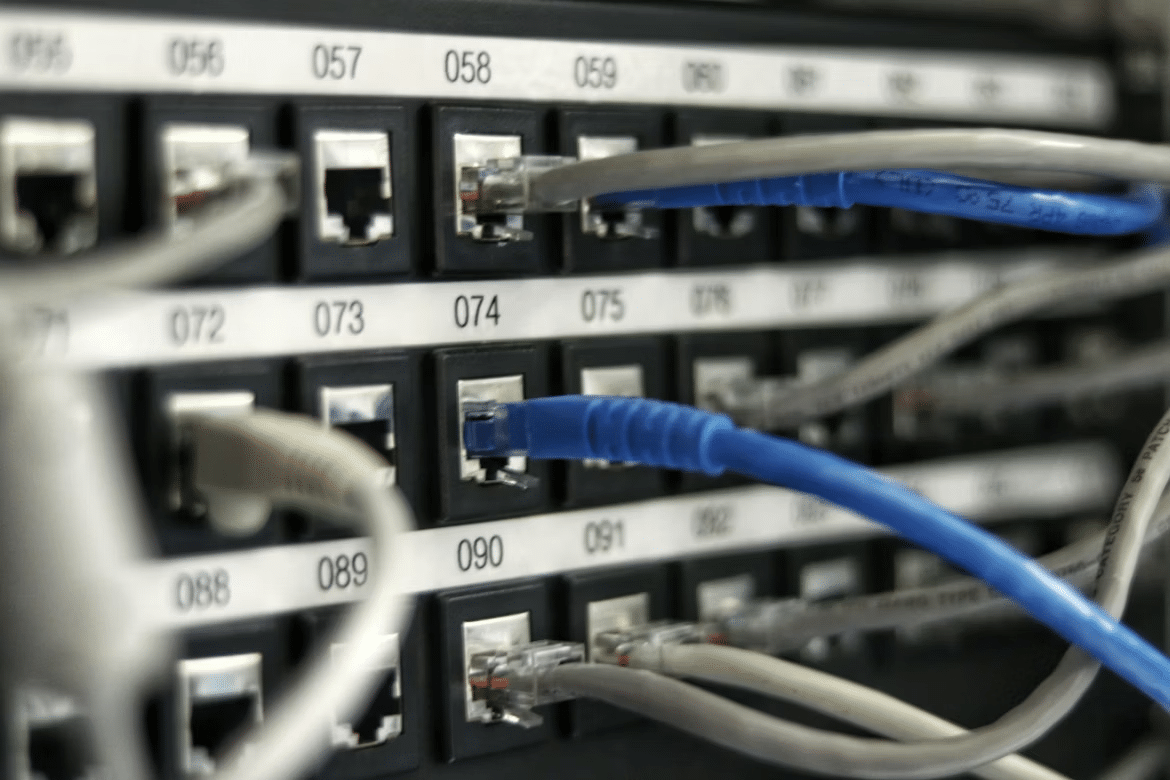
A stable internet connection is essential for streaming quality content. If your connection is slow, you’ll see buffering and pixelated visuals. Test your connection before a viewing session to reduce the chance of interruptions. Upgrading to a plan with higher bandwidth can help keep the stream clearer and more consistent. Instead of relying on Wi‑Fi, use a wired Ethernet connection when possible for a more stable signal and fewer interruptions during playback.
Adjust Streaming Settings
Most streaming services, including Hulu, let you adjust playback quality. If the picture looks blurry, switch to HD for a sharper image. When the internet speed is unstable, lowering the resolution can reduce buffering. These options can be found easily in the playback menu, so review them regularly to match your current network conditions. Before you settle in to stream Hulu, take a moment to open the playback menu and pick the quality setting that suits your connection. A quick check like this can help you avoid buffering and enjoy Hulu’s wide range of shows and movies in the best quality your setup can handle.
Update Streaming Devices and Applications

Old software or hardware can cause slow performance. Many quality issues are fixed simply by keeping both the app and the streaming device up to date. Updates often include bug fixes, performance improvements, and support for higher resolutions. Regularly checking for and installing updates helps your devices run smoothly and deliver better playback. An up-to-date setup provides a more reliable, high-quality streaming experience.
Add Storage and Overheating
Along with staying updated, ensure your device has enough free storage and isn’t overheating. When a phone, tablet, or streaming stick is nearly full or running very hot, it can slow down, crash apps, and hurt streaming quality. Deleting unused apps and giving your device a break if it feels warm can help Hulu run more smoothly.
Position Devices for Better Cooling
Streaming devices perform best when they can release heat. If your phone, tablet, streaming stick, or set‑top box is pressed behind a TV, in a cabinet, or on a soft surface, it can overheat and slow down. Place devices on a hard, open surface with space around them, and keep them out of direct sunlight or stacks of other electronics. Better airflow helps prevent slowdowns, crashes, and drops in Hulu’s picture quality.
Clear Cache and Cookies
As you use your device, cache and cookies build up and can slow down streaming apps. Clearing them removes unnecessary files, frees up memory, and often fixes glitches. It’s quick to do on most devices and browsers, and can lead to smoother playback and better picture quality.
How Often Should You Clear Your Cache?
You don’t need to clear the cache every day, but doing it regularly can keep streaming smooth. You should clear the cache every few weeks. If Hulu starts feeling sluggish, freezing, or not loading artwork and menus correctly, it’s time to clear it sooner.
Use Compatible Devices
HD streaming is limited to the devices you have attached to the service. In older models, higher resolutions or other new streaming features may not be supported. It is possible to access the high quality available if compatible devices are used. As a potential buyer, examining the specific tech specs of a device will ensure support for improved graphics. There’s a bit more differentiation between gear, but new equipment can really change the streaming clarity.
Select the Right Plan
Streaming services usually offer several subscription tiers. Higher‑priced plans often unlock premium resolutions or fewer ads. Review the available options to see which plan best fits your viewing needs. Upgrading can improve video quality and overall experience, and choosing a plan that supports HD streaming is key for vibrant visuals.
Reduce Network Congestion

Multiple devices sharing the same connection can slow your speeds. You can reduce network congestion by managing multiple devices by limiting heavy activities like large downloads or video calls, and prioritizing streaming traffic on your router. With fewer devices competing for bandwidth, you’ll enjoy smoother, more reliable playback.
Minimize Background Applications
Background apps can drain both bandwidth and processing power. Close unused programs, especially those that use the internet, to free up resources for streaming. This leads to smoother playback and clearer images. You can check your task manager or system settings to find and shut down unnecessary processes running in the background.
Conclusion
Improving Hulu streaming quality requires a few simple steps. Honing in on internet speed, smart device compatibility, and application settings registers as one shift forward. Periodic housekeeping, like updating devices and clearing cache, maintains a seamless stream. With these tricks, viewers can watch their shows and movies in the best available clarity.