

Ever wondered what if your important photos get suddenly deleted from your Windows PC? Losing photos can be extremely frustrating, especially if it holds precious memories, important work, or any once-in-a-lifetime moment. This situation can be more stressful when you don’t have a backup of your deleted photos. However, the good news is that deleted photos can often be recovered on Windows, even without a backup, if the right steps are taken quickly.
In this ultimate guide on how to recover deleted photos on Windows without backup, we’ll discuss everything you must know for easy and smooth recovery of your lost photos. This article explains why photo loss happens, what to do immediately after that, and multiple proven photo recovery ways to restore deleted photos without backup. Let’s get started!
How Photo Deletion Works in Windows?
Before jumping to photo recovery workarounds, it’s important to understand what actually happens when a photo is deleted from your Windows PC. When you delete a photo, it goes to the Recently Deleted folder and remains there until permanently erased. Windows simply marks the space occupied by that deleted photo as available for new data.
The actual photo remains on your device until it is overwritten by any new data. This is why quick action is very crucial. The sooner you proceed with recovery, the easier it will be to restore deleted files.
Common Reasons for Photo Loss on Windows
Understanding the exact reason for photo deletion on your Windows PC helps you find an adequate recovery method. Some main reasons why photos get deleted are:
- Accidental Deletion: You might have deleted the photo unintentionally while cleaning other files and folders from your PC.
- Emptying the Recycle Bin: Since deleted photos go to the Recycle Bin folder, emptying the Recycle Bin results in the permanent deletion of those photos.
- Formatting the Drive: Formatting your storage device, especially without any prior backup, erases all its content.
- Virus or Malware Attacks: Malicious programs like viruses or malware can infect the files stored on your device and sometimes cause unexpected data loss.
- System Crash or Windows Update Failure: Unexpected shutdowns, system crashes, or failed Windows updates can also result in file system corruption or deletion of photos from your PC.
Immediate Steps To Take After Photo Deletion
Here are some quick preliminary steps that you can immediately consider to maximise your chances of deleted photo recovery:
- Avoid Saving New Files: Stop using your storage device or saving new files on it, as this may overwrite deleted data and make recovery complex.
- Do Not Restart the PC Unnecessarily: Force restarting your PC makes some background processes overwrite deleted data.
- Safely Remove External Drives: If photos were deleted from a USB, SD card, or external hard drive, safely removing it can help you prevent further complications.
How to Recover Deleted Photos on Windows PC? [Without Backup]
Now that you are familiar with the reasons for photo loss and preliminary steps to implement for smooth and effective photo recovery, it’s time to move on to the adequate recovery methods. Here are some quick methods that you can try to recover deleted photos on Windows without backups:
Method 01: Check the Recycle Bin Folder
As mentioned above, deleted photos on a Windows PC go to the Recycle Bin folder and remain there until permanently erased. It’s important to check this folder before you apply any advanced photo recovery methods. For this:
- Click the Recycle Bin icon on the desktop to open it.
- Browse through deleted photos and select the ones you want back.
- Right-click the photo you want and select Restore.
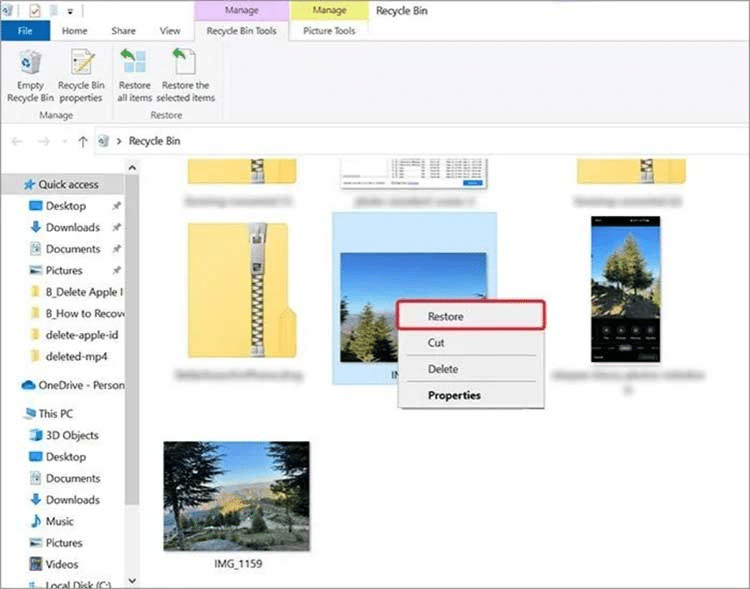
Note: This method works only if your photos were deleted normally (not using Shift + Delete). Also, photos deleted from external drives usually bypass the Recycle Bin and get permanently erased.
Method 02: Recover Photos with Windows File Recovery App
Windows File Recovery is a free, command-line recovery software developed by Microsoft that helps to restore deleted files on Windows devices. You can use this software to recover lost photos from internal drives, USB drives, and memory cards. This tool is especially useful when photos are permanently deleted or removed from the Recycle Bin.
Follow the below steps to recover photos with Windows File Recovery software:
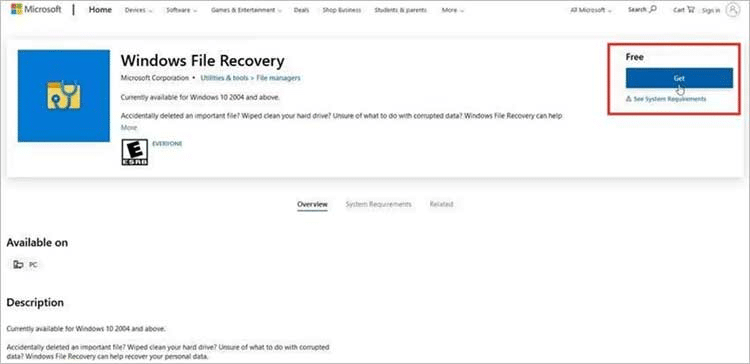
- Firstly, go to the Microsoft Store and download the Windows File Recovery tool on your PC.
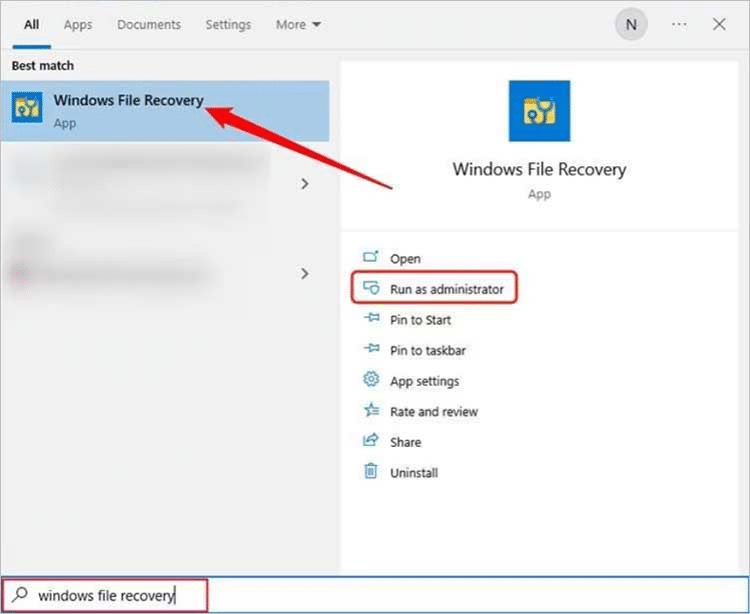
- After installing the software, search for the app and select Run as administrator.
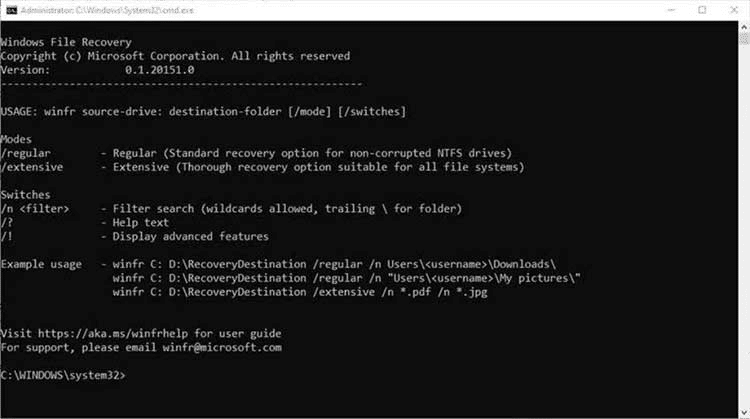
- In the Command Line interface, use Regular or Extensive recovery modes for non-corrupted NTFS drives and other file systems.
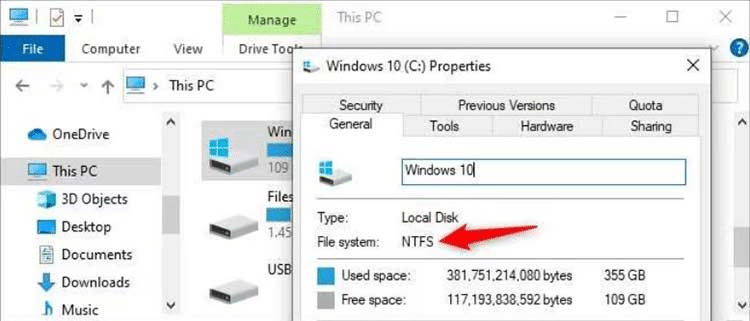
- Now, open File Explorer, right-click the drive where your deleted photos were stored and select Properties. Go to the General tab and check the file system.
- Use the command: winfr C: E: /regular /n Users\< username> \Downloads\, to recover deleted files using the Regular mode on an NTFS drive.
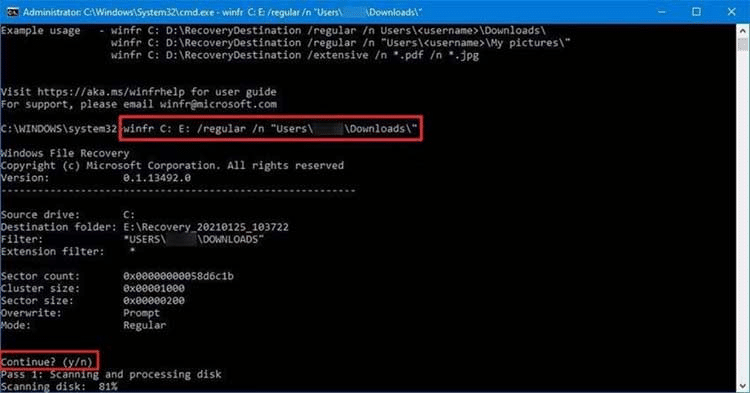
- Press Enter to run the command and Y to continue.
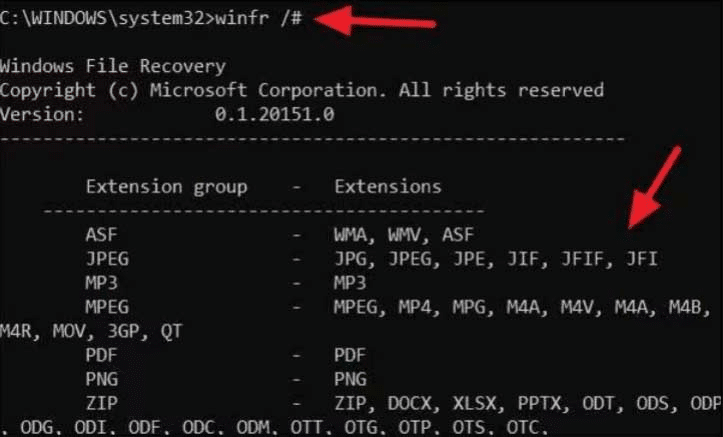
- Use the command: winfr /# to see all supported file extensions and check which image files are recoverable.
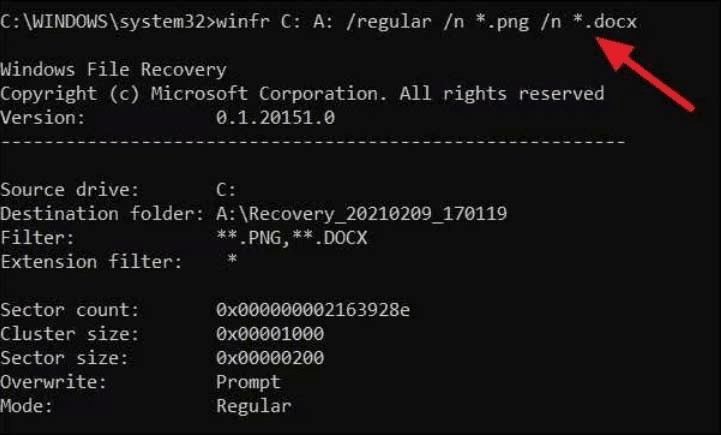
- For example, to recover PNG files from a specific NTFS drive, run the following command: winfr C: A: /regular /n *.png /n *.docx.
- Lastly, locate your recovered photos in File Explorer by opening the destination drive and checking the Recovery_[date]_[time] folder.
![Lastly, locate your recovered photos in File Explorer by opening the destination drive and checking the Recovery_[date]_[time] folder.](https://www.concordp2c.com/wp-content/uploads/2026/01/word-image-8442-9.png)
Method 03: Try Third-Party Photo Recovery Software
If you are still wondering how to recover deleted photos on Windows without backup, use professional tools like Stellar Photo Recovery to restore your lost photos with ease. These tools are specially designed to perform through scanning of your device to locate lost, deleted, or inaccessible photos. Along with photos, you can use this tool to restore deleted audio and video files of various types from Windows devices safely and efficiently.
The Stellar Photo Recovery software allows you to restore multimedia files deleted due to several reasons, including accidental deletion, formatting, system errors, and more. The software can restore your files deleted from SD cards, hard drives, USB drives, and other internal or external drives. It also lets you preview the recoverable files before saving them on your device.
Here’s steps on how to recover deleted photos using this all-in-one photo recovery software:
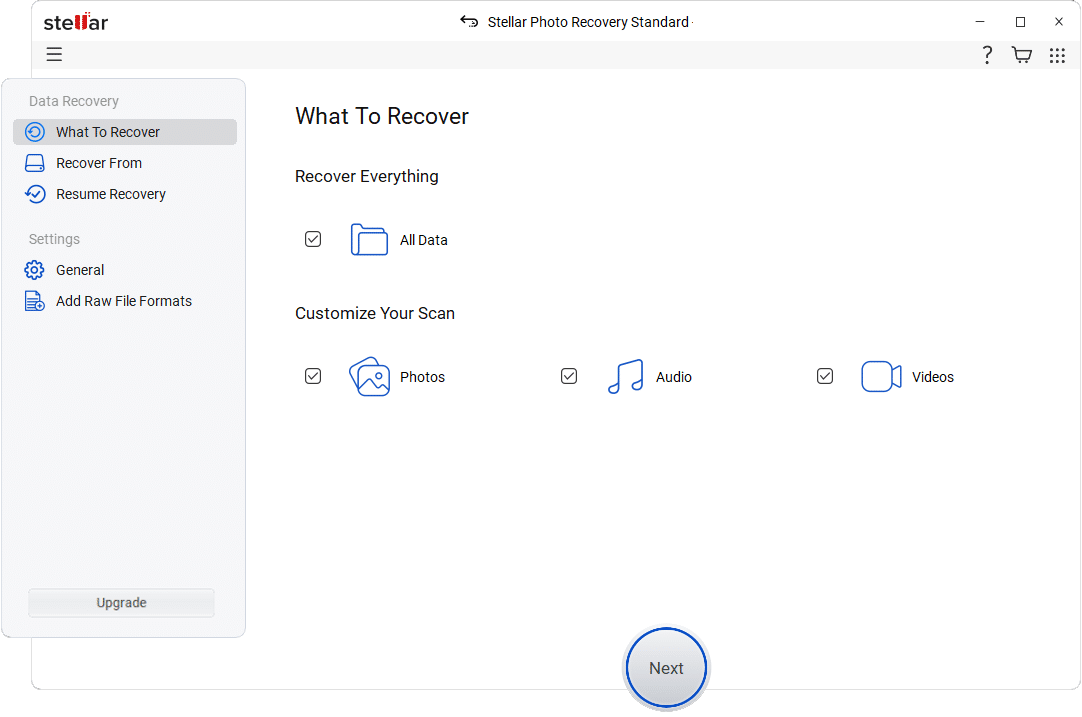
Step 1: Firstly, download and install the Stellar Photo Recovery software on your Windows PC. Launch the software and from the homepage, select the type of file you want (to restore photos, select Photos) and click Next.
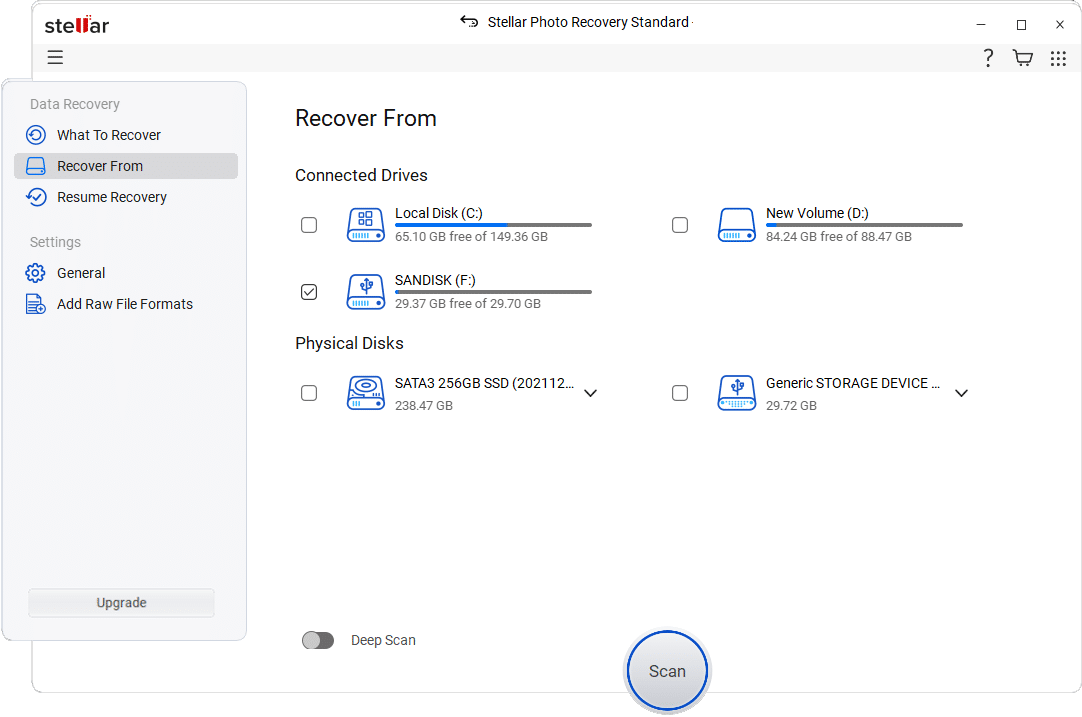
Step 2: Choose the storage drive where the deleted photos were earlier stored and click Scan to initiate the scanning process.
Step 3: Once scanning is complete, preview the recoverable files to verify their quality and accuracy. If satisfied, click Recover to save selected photos to a different drive or external storage device.
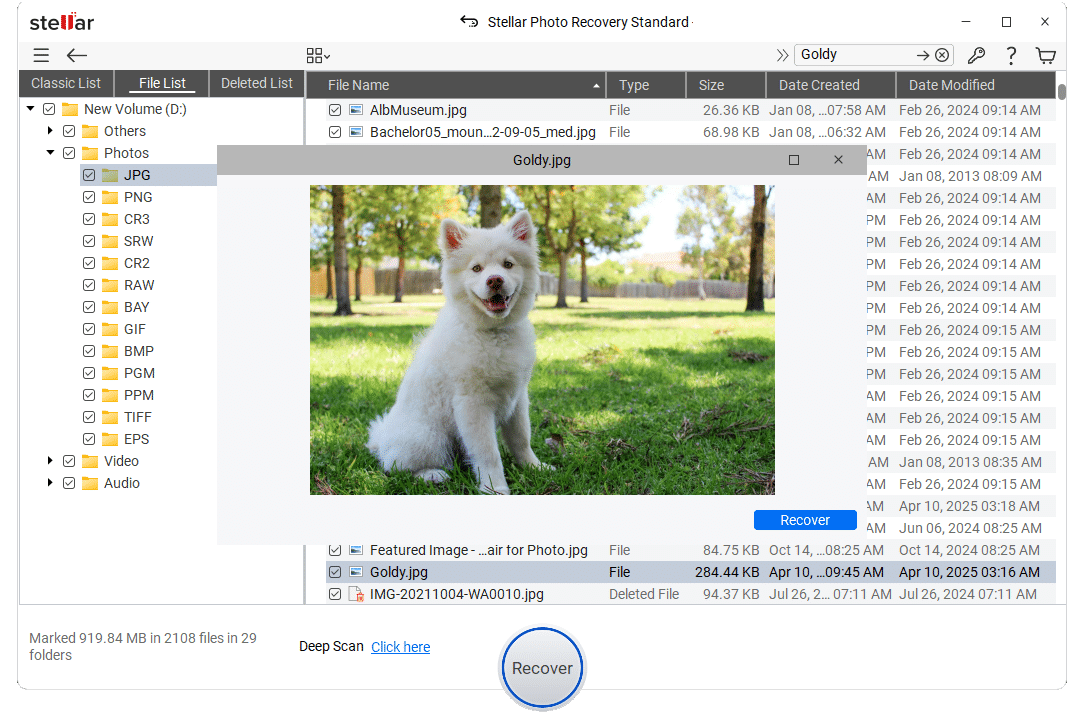
That’s it! It is important to save recovered photos to a different drive to prevent data overwriting and ensure a smooth recovery process.
Wrapping Up
Recovering deleted photos without backup may seem challenging, but with the right approach, it becomes quite simple. You can start with simple methods like checking the Recycle Bin or using the Windows File Recovery app. For permanently deleted photos, professional photo recovery software like Stellar Photo Recovery offers the highest success rate.
The key is to act quickly, avoid overwriting data, and use the correct recovery method based on the situation. With careful handling and the right tools, even photos lost without backup can often be restored safely.